Make Slack feel
a little more human
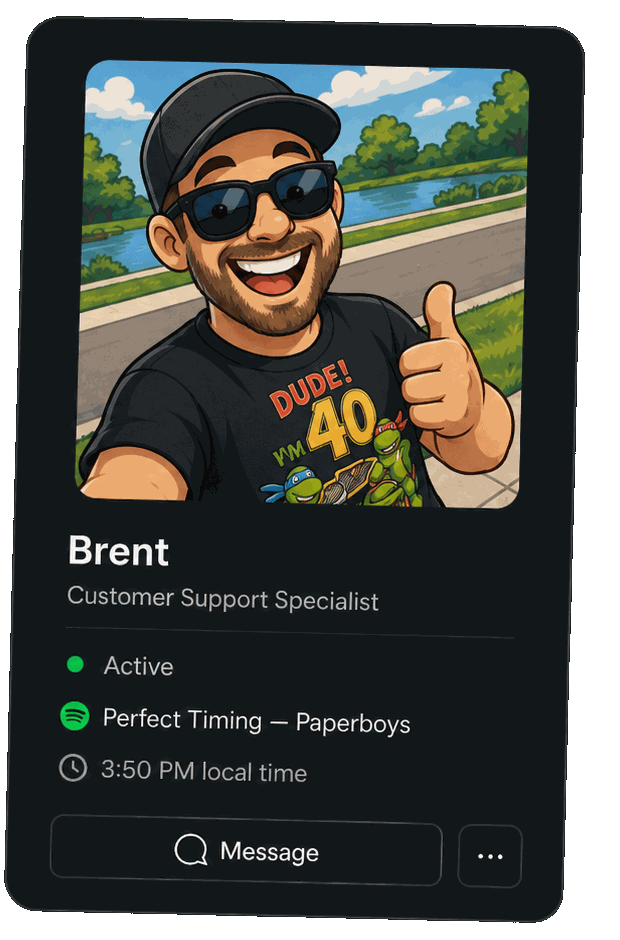
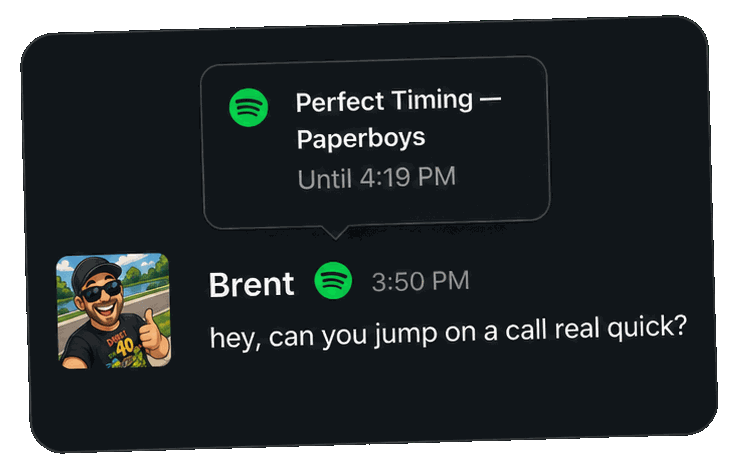
TuneStatus displays your current Spotify track as your Slack status in real time. Apple Music too, with Pro.
Unzip → drag to Applications → sign in with Slack. That's it.
FAQ
Is this safe? What can it see?
In Slack it can do exactly one thing: set your own status. It reads your current
status, so it never clobbers one you set by hand, and your workspace's custom emoji
list, so it can use :spotify: if you have it. No messages, no files, no
channels, nothing about anyone but you. Signed with an Apple Developer ID and
notarized by Apple. Full privacy policy.
Do I have to connect my Spotify account?
No — no login, no password, no permission screen. TuneStatus just asks the Spotify app on your Mac what's playing, so free and Premium accounts work the same. You need the desktop app, not the web player.
What if I set my own status, like "In a meeting"?
Your status wins — TuneStatus never overwrites one you set by hand, and your music comes back when you clear it. Stop playing or step away and the status tidies itself up.
Can I hide my music sometimes?
Yep — the menu bar has a pause switch and an optional work-hours schedule. Podcasts are never shared.
Does it work with Apple Music or other players? NEW
Apple Music, yes — that's TuneStatus Pro ($4.99, one-time). Upgrade inside the app and it reads the Music app on your Mac the same local, no-account way it reads Spotify. Tidal and YouTube Music don't expose what's playing on a Mac, so they can't be supported.
What does it cost?
Spotify support is free, forever. Apple Music is TuneStatus Pro: $4.99 once, no subscription, handled by Stripe. And the Dr Pepper button below still works. 🥤